🎙️ Opening Monologue
The theory is done. The coffee is fresh. It’s time to move from “How it works” to “How we work.”
In the world of Infrastructure as Code, ideas don’t matter unless they survive the terminal. Late nights are where commands carry weight, where one rushed decision can turn into tomorrow’s problem. You can know the rhythm without knowing the mechanics. You can follow the steps and still not understand what’s actually happening when you press Enter.
Tonight isn’t about skimming the surface. It’s about slowing down, looking closer, and learning what really happens inside the terminal, before we trust it with everything else.
Let’s start the engine.
🎯Episode Objective
This episode aligns with the Terraform Associate (004) exam objectives listed below.
- Describe the Terraform workflow
- Initialize a Terraform working directory
- Validate a Terraform configuration
- Generate and review an execution plan for Terraform
- Apply changes to infrastructure with Terraform
- Destroy Terraform-managed infrastructure
- Apply formatting and style adjustments to a configuration
The First Handshake: Initializing the Working Directory
Initializing is the process of preparing a directory to be a Terraform Working Directory. Before this step, your .tf files are just text. After initialization, they become a live project capable of tracking state, calling modules, and communicating with cloud APIs.
Configuration Loading & Parsing
Terraform reads all .tf files in your directory. Using the HCL (HashiCorp Configuration Language) parser, it converts your blocks into an internal dependency graph. At this stage, the graph is logical—it knows what you have, but it hasn’t figured out the “how” or the “when” yet.
Terraform reads all .tf and .tf.json files in your working directory.
- The Language of Choice: Most practitioners use HCL (HashiCorp Configuration Language) because it is designed to be human-readable and supports comments.
- The Machine Interface: Terraform also supports JSON configuration. While rarely used for manual coding, JSON is primarily used in situations where you need to programmatically generate dynamic Terraform configuration files via scripts or external tools. It is highly machine-friendly but lacks the ease of use found in HCL.
The terraform init Command
terraform initis the first command you must run after writing a new configuration or cloning one from version control. It is designed to be idempotent, meaning you can run it multiple times without fear of breaking your existing infrastructure.
Key Flags for your Toolkit:
-upgrade: Forces Terraform to ignore the lock file and fetch the newest versions allowed by your constraints.-input=false: Disables interactive prompts (vital for automation).-lock-timeout=<duration>: Tells Terraform how long to wait for a state lock before failing.
The .terraform Directory
When you run init, Terraform creates a hidden directory called .terraform. This is its local “workspace” where it stores everything it needs to talk to the world.
- Purpose: It caches the provider binaries and module source code needed for your project.
- Warning: Never commit this directory to Git. It contains platform-specific binaries that are large and should be fetched fresh by each user.
- Structure: It contains a
providersfolder (binary plugins) and amodulesfolder (with amodules.jsonmanifest tracking where each module came from). Providers are stored in a strict hierarchy:[hostname]/[namespace]/[name]/[version]/[os_arch].
Plugin & Module Installation Logic
Terraform is designed to be “sticky.” It wants to use exactly what worked last time.
- The Lock File Rule: Terraform first looks for the
.terraform.lock.hcl. If it exists, it downloads the exact versions recorded there. If it doesn’t, it uses yourrequired_providersblock to pick a version and creates the lock file. - The Upgrade Flag (
-upgrade): By default,initwon’t update a provider if a newer version is available but the current one fits the constraint. You must explicitly use-upgradeto tell Terraform: “I know there’s a lock, but I want the newest compatible versions.” - Lockfile Modes: In strict environments, you can use
-lockfile=readonly. This tells Terraform: “Verify the hashes against what I have, but do not dare change the lock file.”
Child Module Installation
During init, Terraform scans your code for module blocks.
- Local Modules: Terraform creates a symbolic link to the local path.
- Remote Modules: Terraform downloads the source code from the Registry, GitHub, or Bitbucket into the
.terraform/modulesdirectory. - The Update Rule: If you change a module’s version in your code, you must re-run
initfor Terraform to download the new version.
Plugin Installation (Providers)
Terraform is a plugin-based architecture. It doesn’t come with AWS or Azure support pre-installed.
- Discovery: Terraform looks at your
required_providersblock and the Dependency Lock File (.terraform.lock.hcl). - Checksums: It verifies the binary’s signature to ensure the “Trust on First Use” security model.
- Storage: Binaries are stored in a path structured by
[hostname]/[namespace]/[name]/[version]/[os_arch].
Reinitializing Configuration
You cannot simply change a provider version and run apply. If your code and your cached plugins are out of sync, Terraform will throw an error.
- When to Re-init: If you add a new provider, change a module source, or update a version constraint.
- The Error: You’ll likely see
Error: Module version requirements have changed. - The Fix: Run
terraform init -upgradeto synchronize your local cache with your new code requirements.
Backend Initialization
The backend is where your State File (the “brain”) lives.
- Initial Hookup:
initsets up the connection to S3, Azure Blob, or Terraform Cloud. - Migration: If you move from a local backend to a cloud backend,
initwill detect the change and ask: “Do you want to copy existing state to the new backend?” - Flags: Use
-migrate-stateto move data, or-reconfigureto ignore old state and start fresh.
The Ritual of Order: Enforcing Code Formatting
The terraform fmt (format) command is the “beautifier” of the HCL world. It adjusts your configuration files to match the canonical format and style defined by HashiCorp. It handles the tedious work of aligning equals signs, fixing indentation, and standardizing spacing.
Usage: terraform fmt [options] [target...]
Why use it?
- Team Consistency: It ensures that every engineer on your team writes code that looks identical, which drastically reduces “noise” in Git diffs.
- Version Upgrades: The canonical format can change slightly between Terraform versions. It’s a best practice to run
fmtproactively after upgrading your CLI. - Readable Logic: By aligning attributes, it makes it much easier to spot missing arguments or typos at a glance.
The Formatting Toolkit (Options)
By default, fmt scans your current directory and overwrites files with the corrected version. You can fine-tune this behavior with these flags:
-recursive: By default,fmtonly looks at the current folder. Use this to clean up your entire project, including all subdirectories and modules.-check: This is a “read-only” mode. It doesn’t change your files; it simply returns a non-zero exit code if it finds files that need formatting. This is a must-have for CI/CD pipelines to ensure no unformatted code is merged.-diff: Displays exactly what changesfmtwould make to your files. It’s the “Preview” mode for your code style.-list=false: Normally, Terraform lists every file it changes. This flag silences that list, keeping your terminal output clean.-write=false: Tells Terraform not to actually save the changes. This is automatically enabled when you use-check.
The Structural Guard: Validating Configuration Logic
While fmt makes your code look clean, terraform validate ensures that it is logically and syntactically sound. It verifies that your configuration is internally consistent, regardless of external factors like cloud credentials or the current state of your infrastructure.
Usage: terraform validate [options]
What does validate actually check?
- Syntax Correctness: It catches missing braces
{}, unclosed quotes, or illegal characters. - Attribute Validation: It ensures you aren’t using an attribute that doesn’t exist for a specific resource (e.g., trying to set a
disk_sizeon a resource that doesn’t support it). - Type Checking: It verifies that you aren’t passing a “string” where the provider expects a “number” or a “list.”
The “Dry” Validation
One of the most powerful aspects of validate is that it doesn’t need to talk to your Cloud Provider or even your Backend. This makes it incredibly fast and safe to run in any environment.
To run a “pure” validation in a CI system without needing access to your remote state (like an S3 bucket or Terraform Cloud), you can initialize specifically for validation:
terraform init -backend=false
terraform validate
Options
Unlike the more complex commands, validate is built for speed and integration.
-json: This is the gold standard for automation. It produces a machine-readable JSON object that reports exactly where an error occurred (line and column). This is how your IDE (like VS Code) highlights errors in red as you type.-no-color: Disables terminal color codes, making the output easier to parse for plain-text logging systems.
Validate vs. Plan
A common question for the 004 Exam is the difference between these two:
validate: Is a local, static check. It doesn’t know about your variables or the real world.plan: Performs an implied validation, but it goes much further by checking your variables, your state, and the actual cloud environment to ensure the plan is feasible.
Late Night Recap
“Think of
validateas your first line of defense. It’s the command you run before you even think about hitting a Cloud API. In a professional CI/CD pipeline,fmt -checkandvalidateare the ‘Gatekeepers’—if they don’t pass, the code never moves forward.”
The Architect’s Preview: Understanding Planned Changes
The terraform plan command is a non-destructive way to see exactly what Terraform intends to do. It is the core of the “Infrastructure as Code” value proposition: predictability.
What happens during a Plan?
When you run a plan, Terraform performs a three-step mental exercise:
- Refresh: It queries the real-world infrastructure (Cloud APIs) to see if anything has changed since the last run.
- Compare: It looks at your
.tffiles and compares them to the “Source of Truth” (the state file). - Propose: It generates a list of actions — Create (+), Update (~), or Delete (-) to make the cloud match your code.
Planning Modes: Choosing the Outcome
Terraform offers three ways to think about your infrastructure. These modes are mutually exclusive; you pick the one that matches your goal.
- Normal Mode (Default): The standard “make reality match my code” path.
- Destroy Mode (
-destroy): Calculates how to safely tear everything down. This is what runs behind the scenes when you use theterraform destroyalias. - Refresh-Only Mode (
-refresh-only): This is used for reconciliation. It doesn’t change your cloud resources; it only updates your state file to match changes someone might have made manually in the console (drift).
Speculative vs. Saved Plans
- Speculative Plans: If you just run
terraform plan, Terraform shows you the output in your terminal. This is a “what if” scenario. It is great for code reviews, but there is no guarantee that the environment won’t change before you finally decide to apply. - Saved Plans (
-out=FILE): In automation, we use-out=tfplan. This saves the exact logic to a file. When you later runterraform apply tfplan, Terraform doesn’t re-calculate; it simply executes that specific file.
️️⚠️ Warning: Never name your plan file with a
_.tf_extension. Terraform will try to read it as configuration code and throw a syntax error. Stick to the convention:_tfplan_
The Planning Options
To customize how the plan is built, use these specific flags:
-refresh=false:** Tells Terraform to skip checking the cloud and just trust the local state file. This makes the plan much faster but increases the risk of working with outdated information.-replace=ADDRESS: Forces a specific resource to be destroyed and recreated, even if no changes are required.-target=ADDRESS: Focuses the plan on one specific resource. Note: Only use this in emergencies (like fixing a single broken resource). Overusing targets can lead to inconsistent state dependency issues.-varand-var-file: Used to inject variable values directly into the plan.-var-fileis preferred for keeping your terminal commands clean.
Advanced Automation: -detailed-exitcode
In a standard run, Terraform returns a 0 if the command finishes and a 1 if it fails. However, in CI/CD, you need to know what the plan found without reading the text output.
The -detailed-exitcode flag changes the exit behavior to provide a machine-readable status:
- Exit Code 0: Succeeded, but no changes were detected. Your infrastructure already matches your code.
- Exit Code 1: The command failed (e.g., syntax error, provider credentials missing).
- Exit Code 2: Succeeded, and changes were found. This is the green light for an automation script to trigger an “Approval” notification or move to the
applystage.
Experimental Power: -generate-config-out=PATH
One of the newest and most exciting additions to the Terraform toolkit is the ability to generate code for resources that already exist in the cloud.
If you are using import blocks in your configuration, this flag tells Terraform to do the heavy lifting for you. Instead of you manually writing the HCL for an existing S3 bucket or EC2 instance, Terraform will:
- Inspect the imported resource.
- Generate the matching HCL code.
- Write it to a new file at the path you specify.
Note: The path you provide must not already exist — Terraform won’t risk overwriting your current code. Even if the plan fails elsewhere, Terraform may still try to save whatever configuration it successfully generated.
Late Night Recap
“For the 004 Exam, remember that
planis the only command that supports Speculative Execution. It is the safety net that ensures that when you finally do hit ‘Apply,’ there are no surprises. It is better to spend 5 minutes reviewing a plan than 5 hours fixing an accidental deletion.”
Precision Control: Influencing Execution with Inputs and Flags
Whether you are previewing changes (plan) or making them real (apply), these options are essential for both local terminal work and CI/CD pipelines.
1. State Protection & Locking
Terraform’s most important job is protecting the State File.
-lock=false: This disables state locking. Use with extreme caution. It allows you to run operations even if another process is working on the state, which can lead to data corruption.-lock-timeout=DURATION: Instead of failing immediately when a state is locked, this tells Terraform to wait (e.g.,-lock-timeout=3m). This is a “must-use” in busy teams where multiple pipelines might trigger at once.
2. Automation & Interaction
In a professional workflow, you often need to silence the CLI’s interactive nature.
-input=false: This tells Terraform: “Don’t ask me for anything.” If a variable is missing or a backend needs configuration, Terraform will simply error out rather than hanging the process.-auto-approve: (Apply only) Bypasses the manual “yes” prompt.TF_IN_AUTOMATION: While not a flag, this environment variable works alongside these settings to keep the output clean for machine logs.
3. Output Formatting
How the data looks in your terminal — or your logs — matters for troubleshooting.
-json: Transforms the human-readable output into a machine-readable JSON stream. This is how high-level dashboards show you “Percent Complete” bars during an apply.-compact-warnings: If your code has 50 minor deprecation warnings, they can drown out real errors. This flag collapses those warnings into a single-line summary unless a critical error occurs.-no-color: Essential for older logging systems or text-based monitoring tools that can’t interpret the ANSI color codes (like green for+or red for-).
4. The Workspace Shortcut: -chdir
The -chdir option is a global flag, meaning it is placed before the main command (like init, plan, or apply). It tells Terraform to switch its working directory to the specified path before performing any operations.
- Clean Automation: In CI/CD, your runner might start at the root of a massive repository. Instead of using
cd path/to/code && terraform init, you can simply runterraform -chdir=path/to/code init. - Consistency: It ensures that Terraform looks for files (like
.terraform, state files, and variables) relative to that specific directory, keeping your execution environment predictable. - Relative Paths: If your configuration uses relative paths for modules or file functions,
-chdirensures those paths resolve correctly as if you were physically standing in that folder.
5. The Throttle: -parallelism=n
By default, Terraform is a highly concurrent engine. When it looks at your Dependency Graph, it identifies every resource that can be built simultaneously (because they don’t depend on each other) and starts working on them at once.
- The Default: Terraform defaults to 10 concurrent operations.
- What it does: The
-parallelism=nflag limits the number of concurrent operations Terraform performs as it walks your graph.
When to change it:
- Scale Down: If you are hitting “Rate Limits” or “Throttling Errors” from providers like AWS or Azure, you should lower this number (e.g.,
-parallelism=3). - Scale Up: If you have a massive, flat infrastructure and a very high-performance API endpoint, you might increase it to speed up your deployments.
Late Night Recap
“If you’re sitting for the 004 exam, pay attention to -input=false. A common trick question asks what happens if you run an apply with that flag but haven’t provided all the variables. The answer: The operation fails. Terraform will never ‘guess’ a value if it can’t ask you for it.”
The Moment of Truth: Applying Changes to Reality
The terraform apply command is the engine that executes the actions proposed in a plan. It talks to your cloud provider’s API and tells it to create, update, or delete resources to match your code.
The Two Faces of Apply (Modes)
Terraform provides two distinct ways to run an apply, depending on whether you are working locally or in an automated pipeline.
1. Automatic Plan Mode (The Developer’s Choice) If you simply run terraform apply, Terraform performs a “Plan-and-Execute” sequence in one go.
- The Workflow: It generates a fresh plan, displays it to you, and waits for a manual
yesto proceed. - Safety: You can use all the planning options (like
-varor-refresh=false) during this step. - Automation: You can bypass the prompt with
-auto-approve.
⚠️ Warning: Only use
_-auto-approve_if you are certain that no “Configuration Drift” (manual cloud changes) has happened. If reality has changed, an auto-approved apply might delete or modify things you didn’t expect.
2. Saved Plan Mode (The Pipeline Choice) In a professional CI/CD environment, you usually pass a saved plan file (e.g., terraform apply tfplan).
- The Workflow: Terraform reads the binary plan file and executes it immediately without asking for confirmation.
- Immutability: You cannot add new options or variables here. The decisions are already “baked” into the plan file.
- Verification: You should always use
terraform showto inspect a saved plan before sending it to the apply stage.
Surgical Precision: -replace=resource
The -replace flag is your way of manually overriding Terraform’s logic. Normally, if your code matches the cloud, Terraform says “No changes needed.” This flag forces a Destroy-and-Recreate cycle for a specific resource, even if the configuration hasn’t changed.
Syntax: terraform apply -replace="aws_instance.web_server"
Terraform will create a plan that explicitly shows the resource being destroyed and then recreated.
Use Cases:
- Fixing Corruption: When a Virtual Machine is running but the internal software is corrupted.
- Triggering Provisioners: If you use
remote-execorlocal-execand need them to run again (since they only run during creation). - Stuck Resources: When a cloud resource is technically “active” but unresponsive to API calls.
Late Night Recap
“For the 004 Exam, remember this critical distinction: When you pass a saved plan file to
apply, Terraform considers the act of passing the file as your ‘Approval.’ It will not ask for a ‘yes,’ and it will ignore the-auto-approveflag because approval is already implied.”
The Clean Slate: Destroying Managed Infrastructure
The terraform destroy command is the “Off” switch for your infrastructure. It is designed to deprovision every single object managed by your specific configuration.
While you rarely want to use this in a stable production environment, it is an essential tool for managing ephemeral infrastructure — such as development sandboxes, training labs, or temporary testing environments. It ensures that when your work is done, you aren’t leaving behind expensive cloud resources that rack up costs.
Under the Hood: The Convenience Alias
Technically, destroy isn’t a unique standalone engine. It is actually a convenience alias for: terraform apply -destroy
Because it is fundamentally an apply operation in “reverse mode,” it accepts almost all the same flags as terraform apply. However, it forces Terraform into the “Destroy” planning mode, looking at your state file and calculating the exact order in which resources must be deleted to respect their dependencies.
Safety & Precision
Even when tearing things down, Terraform provides tools to ensure you don’t accidentally delete the “wrong” things.
- Speculative Destroy Plan: If you want to see what would happen without actually triggering a deletion, run:
terraform plan -destroyThis generates a preview of the destruction, allowing you to review the impact safely. - Targeted Destruction: If you only want to remove a specific piece of the puzzle, you can use the
-targetflag:terraform destroy -target=aws_instance.web_serverThis will destroy only that specific instance and any resources that exclusively depend on it. - The Confirmation: Just like a standard apply,
destroywill output a plan and pause for a manualyesconfirmation before it touches a single API.
Late Night Recap
“For the 004 Exam, remember that
destroyis just as ‘state-aware’ asapply. It doesn’t just delete things blindly; it uses the state file to identify what exists and the dependency graph to ensure it deletes them in the right order (e.g., deleting the Virtual Machine before the Network Interface it’s attached to).”
Distributed Trust: Running the Workflow Across Environments
In a mature CI/CD pipeline, the “Plan” phase often happens in a temporary build agent, while the “Apply” happens later, perhaps after a manual approval, in a different runner. Because Terraform is designed to be highly precise, moving a plan between machines requires a very specific strategy to avoid failure.
The “Artifact” Strategy
To ensure the apply phase works perfectly on a different machine, you cannot simply move the .tf files. You must treat the entire working directory as a single immutable artifact.
- Archive Everything: After the
plancompletes, you must archive the entire working directory. This includes the configuration files, the generated plan file, and—most importantly—the.terraformsubdirectory created duringinit. - Identical Extraction: When the
applystep begins on a new machine, you must extract that archive at the exact same absolute path where it was created.
The Hard Constraints of Portable Plans
Terraform makes several strict assumptions when you move a plan file from one environment to another. If any of these are violated, the apply will fail:
- Path Sensitivity: The saved plan file often contains absolute paths to child modules or data files. If you plan in
/home/runner/work/but try to apply in/opt/terraform/, the pointers will break. - OS & Architecture Lock: You cannot “cross-compile” a plan. A plan created on a Windows machine must be applied on a Windows machine. A plan created on Linux (AMD64) cannot be applied on Linux (ARM64).
- Plugin Parity: The provider plugins must be identical. If
initpulled version 3.6.0 during the plan, but the apply machine tries to use 3.6.1, Terraform will throw an error to prevent state corruption. - Credential Consistency: While you can use “Read-Only” credentials for a
planand “Read-Write” for anapply, those credentials must point to the same account and project. Terraform cannot automatically detect if you’ve switched cloud tenants between steps.
Late Night Recap
“Think of a Terraform Plan as a frozen snapshot of intent. It isn’t just a list of ‘to-dos’; it’s a specific set of instructions calculated for a specific OS, using specific plugins, located at a specific file path. If you change the environment, the snapshot becomes invalid. In automation, consistency isn’t just a preference — it’s a requirement.”
Late Night Knowledge Check
For the 004 Exam, keep these three nuances in mind:
- Parallelism: By default, Terraform walks the graph and performs up to 10 concurrent operations. You can change this with the
-parallelism=nflag. - Non-Transactional: If an
applyfails halfway through, the resources already created stay created and are recorded in the state. Terraform does not “rollback.” - The Lock: During
apply, Terraform locks your state so nobody else can interfere with the brain while it’s being updated.
🌙 Late-Night Reflection
Late nights don’t reward speed — they reward understanding. When commands feel familiar, it’s easy to trust them blindly, but that’s usually when mistakes happen. The terminal doesn’t care how confident you feel; it only responds to intent. Knowing what happens when you press Enter is what separates routine work from responsible automation.
✅ Key Takeaways
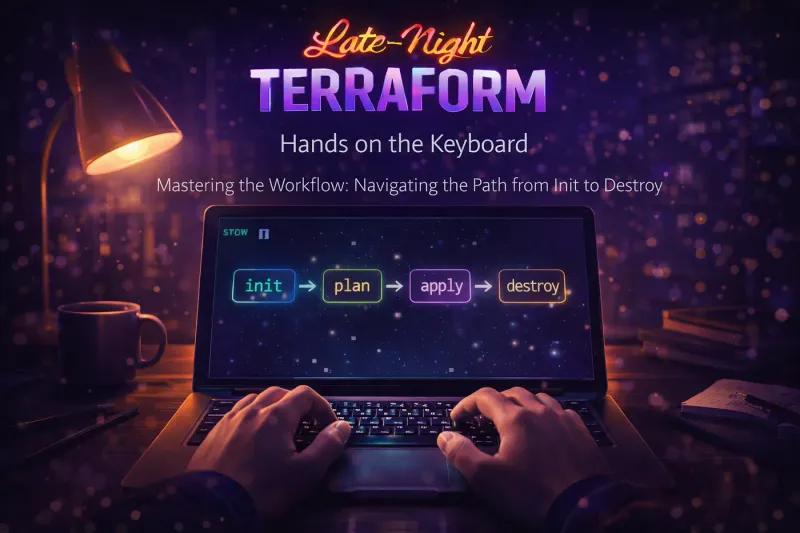
- The Terraform workflow follows a strict lifecycle: initialize → format → validate → plan → apply → destroy.
terraform inittransforms plain.tffiles into a live working directory by installing providers, modules, and backends.- The
.terraformdirectory is ephemeral and machine-specific and must never be committed to version control. terraform fmtenforces canonical HCL style, reducing noise and improving collaboration.terraform validateperforms static, local checks without contacting providers or state backends.terraform planis the predictability engine, showing exactly how Terraform intends to change reality.- Saved plans (
-out=tfplan) create immutable execution contracts for automation pipelines. terraform applyexecutes either a fresh plan or a previously approved plan file, with different safety guarantees.- Terraform is non-transactional — partial failures leave created resources recorded in state.
terraform destroyis simply apply in reverse, fully state-aware and dependency-safe.- Portable plans require identical paths, plugins, OS, and architecture across environments.
- Terraform prioritizes correctness and safety over convenience, even when that means failing loudly.
📚 Further Reading
- The core Terraform workflow documentation
[terraform init](https://developer.hashicorp.com/terraform/cli/v1.12.x/commands/init)command documentation[terraform fmt](https://developer.hashicorp.com/terraform/cli/v1.12.x/commands/fmt)command documentation[terraform validate](https://developer.hashicorp.com/terraform/cli/v1.12.x/commands/validate)command documentation[terraform plan](https://developer.hashicorp.com/terraform/cli/v1.12.x/commands/plan)command documentation[terraform apply](https://developer.hashicorp.com/terraform/cli/v1.12.x/commands/apply)command documentation[terraform destroy](https://developer.hashicorp.com/terraform/cli/v1.12.x/commands/destroy)command documentation
🎬 What’s Next
We’ve learned how to drive the workflow, but right now we’re running it against a blank page. Execution without expression doesn’t build much.
We’re moving into the editor to learn the rules of the language itself.