🎙️ Opening Monologue
The finish line is in sight.
The sun will be up in a few hours, and soon this “after-bedtime” project won’t belong to just me anymore. Real-world DevOps isn’t a solo act performed from a couch — it’s a team sport played at scale, with shared responsibility and shared consequences.
Late nights change when infrastructure stops being personal. The local terminal gives way to shared dashboards. Lone decisions are replaced by visibility, permissions, and guardrails that protect more than just one person’s environment.
Tonight, Terraform stops being a tool you run and becomes a system everyone depends on. This is where collaboration replaces control — and governance becomes the price of scale.
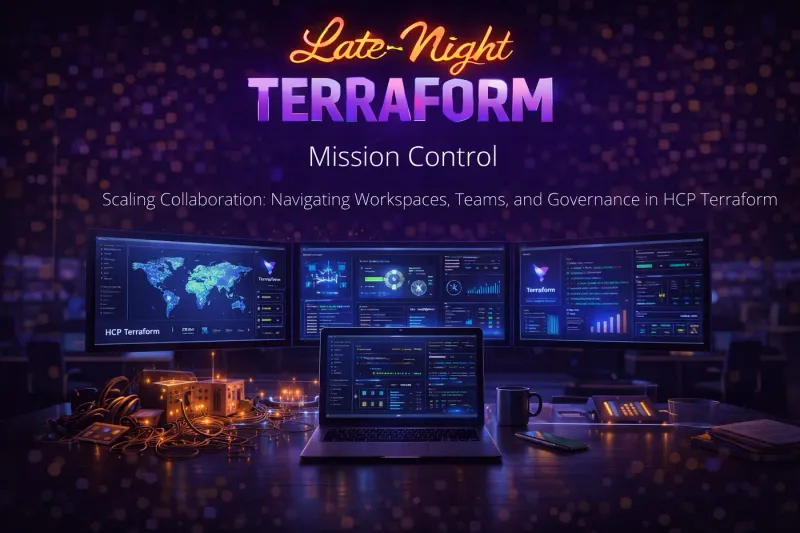
The living room is now Mission Control.
🎯 Episode Objective
This episode aligns with the Terraform Associate (004) exam objectives listed below.
- Use HCP Terraform to create infrastructure
- Describe HCP Terraform collaboration and governance features
- Describe how to organize and use HCP Terraform workspaces and projects
- Configure and use HCP Terraform integration
Mission Control: The Foundations of HCP Terraform
HCP Terraform is a managed service (SaaS) provided by HashiCorp. While the Terraform CLI handles the “doing,” HCP Terraform handles the “governing.” It acts as a centralized platform to host your state files, manage variables, and execute runs in a consistent environment rather than on your local machine.
Comparison: Local vs. Remote vs. HCP Terraform
1. State Storage & Security
- Local Storage: State is stored as a
terraform.tfstatefile on your hard drive. It is unencrypted by default and highly vulnerable to accidental deletion or loss if your laptop fails. - Remote Storage (S3/GCS): State is stored in a cloud bucket. This adds durability (backups) and security (encryption at rest). However, you have to manually configure the bucket, IAM policies, and encryption keys.
- HCP Terraform: State is fully managed and encrypted by HashiCorp. It includes automatic versioning, meaning every single change to your infrastructure creates a historical snapshot you can view or download from a UI.
2. State Locking (Concurrency)
- Local Storage: No locking. If two people run Terraform at once, the state file will likely corrupt.
- Remote Storage (S3/GCS): Requires a secondary service (like AWS DynamoDB) to handle locking. You have to write extra code to manage this “lock table.”
- HCP Terraform: Native locking is built-in. It handles the queueing of runs automatically without requiring any extra cloud resources or configuration.
3. Execution Environment
- Local Storage: Runs on your machine. This causes “works on my machine” syndrome due to differing CLI versions or local environment variables.
- Remote Storage (S3/GCS): Still runs on your machine (or a manual CI/CD runner). You are still responsible for the compute and network connectivity to the cloud.
- HCP Terraform: Remote Execution. Terraform runs on HashiCorp’s managed infrastructure. This ensures a clean, consistent environment for every run, regardless of who triggers it.
4. Secret & Variable Management
- Local Storage: Secrets often end up in plain-text
.tfvarsfiles or your shell history. - Remote Storage (S3/GCS): Usually managed via environment variables in a CI/CD tool (like GitHub Actions secrets), which can be tedious to sync across different projects.
- HCP Terraform: Features a centralized Variable UI. You can store “Sensitive” variables that are masked (write-only), so team members can use them in runs without ever seeing the actual API keys or passwords.
5. Team Collaboration & UI
- Local Storage: None. It’s a “solo” experience.
- Remote Storage (S3/GCS): Collaboration is possible, but there is no “face” to the data. To see what’s in the state, you have to run CLI commands.
- HCP Terraform: Provides a Full Web Dashboard. You can see a history of every “Plan” and “Apply,” who triggered them, what resources were changed, and even cost estimation — all in a searchable browser interface.
Resource Management Hierarchy
In HCP Terraform, the resource hierarchy is designed like an inverted tree. It moves from the broadest administrative level down to the specific sets of infrastructure you are managing.
1. Organization (The Top Level)
The Organization is the highest-level container. Usually, this represents your entire company or a large business unit.
- Purpose: It acts as the administrative boundary for billing, shared modules, and global security policies.
- Key Features: This is where you manage your Private Module Registry, define Sentinel/OPA policies, and invite Teams (groups of users).
- Example:
Acme-Corp
2. Project (The Logical Grouping)
Introduced to help larger companies stay organized, Projects sit inside an Organization to group related workspaces.
- Purpose: It allows you to partition your infrastructure by department, environment, or application suite.
- Key Features: You can assign permissions at the Project level. For example, you can give the “Networking Team” access to the “Core-Infra” project, while the “App-Dev Team” only sees the “Customer-Portal” project.
- Example:
Marketing-App,Core-Networking, orData-Platform.
3. Workspace (The Action Level)
The Workspace is where the actual work happens. In the CLI, a workspace is just a state file; in HCP Terraform, it is much more.
- Purpose: A workspace contains everything needed to manage a specific set of infrastructure: the configuration (code), the state file, the variables, and the run history.
- Key Features: Each workspace is tied to a specific VCS branch (like
mainorstaging) and maintains its own set of environment variables and secrets. - Example:
frontend-production,frontend-staging, orinventory-db-prod.
The Control Rooms: Workspaces as Operational Units
A workspace is the atomic unit of execution in HCP Terraform. If something runs, stores state, or gets audited, it happens inside a workspace.hile a workspace in the local CLI is just a separate state file, an HCP Workspace is significantly more powerful than the simple state-isolation folders. They serve as a managed environment for your infrastructure’s entire lifecycle.
Purpose & Contents
A workspace exists to provide:
- Granular Permissions: Workspaces enable fine-grained access control. You can grant the Networking team “Admin” rights over the VPC workspace, while giving Developers only “Read” access to see the outputs. Permissions are enforced through teams and roles, not ad-hoc trust.
- Safety (Locking & Run Queueing): HCP Terraform acts as a traffic controller for your infrastructure. Only one apply can modify state at a time. Concurrent runs are automatically queued, not rejected. If three developers trigger an
applyat once via Git, HCP doesn’t crash. it queues them up: Run #1 (Applying) -> Run #2 (Pending)-> Run #3 (Pending). - Traceability (The “Audit Trail”): Every change is linked to a specific user or a specific Git Commit SHA, creating a transparent history for compliance and troubleshooting. You can literally download the state file from three weeks ago if you need to perform a forensic analysis of a failure.
- Consistency (Repeatable Execution): Every run happens in a fresh, Linux-based container with the exact version of Terraform and the Providers you’ve specified. By using Variable Sets, you can ensure that every workspace in a project uses the same standard environment variables (like REGION=
us-east-1) without manual entry.
Workflow Types: CLI-driven vs. VCS-driven
This defines how a “Run” is triggered in the workspace.
VCS-driven (The “GitOps” Way):
- How it works: You connect the workspace to a Git repo (GitHub, GitLab, etc.).
- Trigger: When you push code or open a Pull Request, HCP Terraform automatically starts a
plan. - Pros: Best for team collaboration; code review and infra changes happen in the same place.
CLI-driven (The “Hybrid” Way):
- How it works: You run
terraform planorapplyfrom your local terminal. - Trigger: The local CLI sends your code to HCP Terraform to be executed remotely.
- Pros: Great for quick iterations or when you don’t want to commit every small change to Git just to see a plan.
Execution Modes
This determines where the Terraform binary actually runs.
- Remote (Default): The plan and apply happen on HashiCorp’s managed infrastructure. You don’t need Terraform installed locally to “apply” changes. Best for publicly reachable cloud APIs
- Local: The plan and apply happen on your computer, but the state file is still stored and locked in HCP Terraform. Useful if your local machine has specific network access that the cloud doesn’t.
- Agent: You run a small “Agent” software inside your private network (e.g., inside a secure VPC). HCP Terraform sends instructions to that agent. This is the best way to manage private infrastructure without opening your firewall to the public internet.
Terraform Version Selection
HCP Terraform allows you to pin specific versions to prevent “version drift.”
- Manual Selection: You can lock a workspace to a specific version (e.g.,
1.5.7). - Auto-Update: You can set it to track the latest “minor” release (e.g.,
1.6.x), ensuring you get security patches without breaking changes. - Version Guardrails: If a user tries to run a workspace with a version different from what is configured, HCP Terraform will block the run to prevent state corruption.
Workspace Health Indicators
HCP Terraform provides visual cues to tell you if your infrastructure is “healthy” at a glance:
- Drift Detection: It periodically checks if the real-world resources still match your code. If someone manually changes a setting in the AWS Console, the workspace flags it as “Drifted.”
- Run Status: * Planned: A change is waiting for approval.
- Applied: The latest run was successful.
- Errored: The last deployment failed.
- Policy Checks: Indicates if the workspace is currently violating any Sentinel or OPA security rules (e.g., “Advisory” vs. “Mandatory” failures).
The Invisible Hand: Remote Operations Behind the Scenes
“Remote Operations” is where HCP Terraform shifts from being a storage bucket to a full-blown CI/CD platform. It changes the answer to the question: “Who is actually doing the work: my laptop or the cloud?”
Remote Execution vs. Local Execution
This defines the “Compute” for your Terraform runs.
Remote Execution (Standard HCP): When you run terraform apply, your local machine merely acts as a terminal. HCP Terraform spins up a fresh, ephemeral virtual machine in its own cloud, clones your code, and executes the run there.
- Pros: Consistency (no “works on my machine”), centralized logs, and you don’t need to keep your laptop open during a long 20-minute deployment.
Local Execution: Terraform runs on your CPU and uses your local network to talk to AWS/Azure. HCP Terraform is only used as a “State Storage” and “Locking” mechanism.
- Pros: Faster for small tests; works if you have local firewall access to your resources that the cloud doesn’t.
Remote State & Locking
HCP Terraform provides a “Managed Backend” that is significantly more advanced than a basic S3 bucket.
- Native Locking: Unlike S3 (which requires an extra DynamoDB table), HCP Terraform handles locking natively. If a run is in progress, any other attempt to start a run is automatically queued or blocked.
- Versioned State: Every single
applycreates a new version of the state file. You can view a visual diff in the UI to see exactly which resource attributes changed between Version 5 and Version 6. - Encryption: State is encrypted at rest (AES-256) and in transit (TLS).
Disabling Remote Execution (State Only)
Sometimes you want the State benefits of HCP (history, security, UI) but you want to keep the Execution on your own runners (like GitHub Actions or a local terminal).
- How to do it: In the Workspace settings, you change the Execution Mode to Local.
- What happens: The
cloudblock in your code still points to HCP. When you runterraform plan, it happens on your machine. The resulting state is “pushed” up to HCP once finished. - Why do this? If your infrastructure is behind a strict VPN or private data center where HashiCorp’s public IPs cannot reach.
HCP Terraform Agents
Agents are the “best of both worlds” solution for private infrastructure.
Imagine you have a private data center. HCP Terraform (SaaS) cannot “see” it to manage it. Instead of opening your firewall to the internet, you install a small Agent (a lightweight Docker container or binary) inside your private network.
- Pull-Based Architecture: The Agent calls out to HCP Terraform to ask, “Is there any work for me?”
- Execution: If there is a run, the Agent downloads the code, executes the
plan/applylocally within your network, and sends only the logs and state back to HCP. - Security: You never have to open inbound ports. As long as the Agent can reach
app.terraform.ioon port 443, it works.
Docking the CLI: Integrating Local Tools with the Cloud
Integrating your local workflow with HCP Terraform is the final step in moving from a solo, laptop-centric setup to a professional, managed infrastructure platform.
This integration is handled primarily through:
- The Terraform CLI
- The
cloud {}block - A small set of supporting files and flags
You still run terraform plan and terraform apply — but who executes, stores state, and enforces rules changes completely.
The Anatomy of the cloud Block
The cloud block is the modern way to tell the Terraform CLI, “Don’t store state here; use HCP Terraform.” It replaces the older backend "remote" {} block. A configuration cannot use both a backend block and a cloud block
terraform {
  cloud {
    organization = "my-org-name"
    hostname     = "app.terraform.io" # Optional: default is HCP Terraform
    workspaces {
      # Use ONE of the following (mutually exclusive)
      name = "my-workspace"
      # OR
      tags = ["production", "web-tier"]
    }
  }
}organization: The name of your HCP Terraform organization. You can also set this via theTF_CLOUD_ORGANIZATIONenvironment variable to keep your code more generic.hostname: Primarily used for Terraform Enterprise (the self-hosted version). If you are using the standard cloud version, you can omit this as it defaults to app.terraform.io.workspaces.name: Directly links your local directory to one specific remote workspace. This is best for a “one-repo-per-workspace” setup.workspaces.tags: This is for more dynamic setups. It allows your local directory to connect to multiple remote workspaces that share these tags. When you run terraform workspace select, it will look for remote workspaces matching those tags.
State Migration (Local -> Remote)
When you add the cloud block to a project that already has a local terraform.tfstate file, Terraform handles the move gracefully.
- Initialize: Run
terraform init. - Detection: Terraform detects that you have local state but are now using the
cloudblock. - Migration: It will ask: “Do you want to copy existing state to the new backend?”
- Confirm: Type
yes. Your local state is uploaded to HCP Terraform, and your local file is typically backed up and then ignored.
.terraformignore
Just like .gitignore, this file tells Terraform which files not to upload to the remote execution environment.
- Why it matters: In Remote Execution mode, Terraform bundles your entire directory and sends it to an HCP runner. You don’t want to send 500MB of logs, or sensitive
.envfiles. - Standard entries:
.git/
node_modules/
*.log
secrets.auto.tfvarsNote: .terraformignore affects upload, not state.
The -ignore-remote-version Flag
HCP Terraform workspaces are usually pinned to a specific Terraform version (e.g., 1.7.0). If your local CLI is running 1.8.0, Terraform will normally throw an error and refuse to run to prevent compatibility issues.
- The Override: Use
terraform plan -ignore-remote-version. - When to use it: Only for quick testing or if you are absolutely sure the version difference won’t corrupt the state. It’s a “safety off” switch.
Terraform CLI Integration
Even when using HCP Terraform, the CLI remains your primary interface. It acts as a bridge:
- Speculative Plans: When you run
terraform planlocally, the CLI streams your code to HCP. HCP runs the plan and streams the output back to your terminal. No resources are actually changed. - Triggering Runs: If execution mode is Remote, running
terraform applylocally tells HCP to start a real run in the cloud. You can then close your laptop, and the run will continue on HashiCorp’s servers.
Steps for migration
- Login:
terraform login - Configure: Add the
cloud {}block to your.tffiles. - Ignore: Create a
.terraformignorefile. - Migrate: Run
terraform initand accept the state migration. - Verify: Check the HCP Terraform UI to see your state file and run history.
Launch Sequences: Runs, Plans, and Applies
In HCP Terraform, a Run is the fundamental execution unit. Everything — plans, applies, policies, approvals, and state updates — happens as part of a single run lifecycle. Think of a run as a mission sequence:
Trigger Plan -> (Policy) -> Apply -> State Update
Four types of Run
1. Plan and Apply (The Standard Run)
This is the workhorse of Terraform. It follows the full lifecycle: Plan → Policy Check → Cost Estimation → Apply.
- Auto-Apply: This is the only run type where you can enable “Auto-apply” to skip the manual approval gate.
2. Speculative Plan (The “What-If” Run)
Triggered by PRs or running terraform plan from your local CLI.
- Non-destructive: It is entirely read-only.
- Concurrency: Multiple people can run speculative plans simultaneously in the same workspace because they don’t lock the state.
3. Refresh-only Run
Used when you suspect “Drift” (someone changed something in the Cloud Console).
- Outcome: It updates the
terraform.tfstatefile to match the real world. - Safety: It will never modify or delete your cloud resources; it only updates Terraform’s “memory” of them.
4. Destroy Run
This is a “scorched earth” operation to remove everything managed by the workspace.
- Safety Switch: For security, you must go to Settings > Destruction and Deletion and ensure “Allow destroy plans” is enabled (though it is often on by default).
- UI Requirement: In the HCP UI, you are usually required to type the Workspace Name as a final confirmation before a destroy run can be queued.
Plan vs. Apply (Core Terraform)
In HCP Terraform (HCPT), plan and apply are not just CLI commands—they are phases of a managed remote lifecycle. While the logic of “calculating vs. executing” is the same as local Terraform, the behavior and outcomes change significantly.
The “Saved Plan” Requirement
In local Terraform, you often run terraform apply and it calculates a plan on the fly.
- In HCP Terraform: Every
applyis strictly tied to a persisted plan file. - Why it’s different: HCPT cryptographically “locks” the plan. This ensures that the infrastructure you saw in the
planphase is exactly what gets built in theapplyphase, even if someone else pushed code or changed a variable in the 5 minutes between the two steps.
Speculative Plans (Read-Only)
HCP Terraform introduces a unique type of plan that doesn’t exist in a “standard” local workflow.
- Speculative Plan: Triggered automatically when you open a Pull Request (PR).
- The Difference: These plans are locked from being applied. They exist only for code review. You cannot force an
applyon a speculative plan; you must merge the code to trigger a “real” plan that can then be applied.
Policy Enforcement (Sentinel/OPA)
This is a “middle-man” step between Plan and Apply that only exists in HCP/Enterprise.
- The Flow:
PlanPolicy CheckApply. - The Difference: Even if your
planis technically perfect (zero syntax errors), HCP can block theapplyif it violates a business rule (e.g., “No unencrypted S3 buckets” or “Only use small instances”). Local Terraform has no native way to block an apply based on logic like this.
Run Statuses You’ll See in HCP
When you look at the HCP dashboard, you’ll see these specific status indicators that distinguish where the run is:
Planned: The plan is finished, but it’s sitting in a “Saved” state waiting for a human to click Confirm & Apply.Needs Confirmation: Specifically used when a plan has passed but requires a manual “Yes” from an authorized user.Discarded: This happens if a plan was generated, but someone either canceled it or pushed new code (which makes the old plan “stale”).
Manual Apply vs. Auto-Apply
In HCP Terraform, the Apply Method determines whether a human must click a button to authorize infrastructure changes or if the system should proceed automatically after a successful plan. This setting is configured at the Workspace level under Settings > General
Manual Apply (The “Gatekeeper” Workflow)
Manual Apply is the default and most secure setting for infrastructure management. It introduces a human-in-the-loop requirement where every plan must be reviewed and explicitly confirmed before any real-world resources are modified.
- Human Review: After a
plancompletes, the run pauses in a “Needs Confirmation” state. An authorized team member must review the plan output and click “Confirm & Apply.” - Safety First: This prevents accidental deletions or high-cost additions by ensuring a set of eyes verifies the changes.
- Best For: Production environments, high-risk infrastructure components (like databases or core networking), and teams following strict compliance or change-management protocols.
- Auditability: Every manual approval is logged with the username of the person who authorized the run, providing a clear audit trail.
Auto-Apply (The “Hands-Off” Workflow)
Auto-Apply removes the manual approval step to speed up the delivery pipeline. If the plan stage finishes successfully and passes all configured policy checks (like Sentinel or OPA), HCP Terraform immediately transitions to the apply stage without waiting for user input.
- Immediate Execution: As soon as code is merged into the linked VCS branch, the system handles everything from “code to cloud” in one continuous motion.
- Bypassing Confirmation: It skips the “Needs Confirmation” state entirely. However, it cannot bypass policy failures; if a mandatory policy fails, the run will still stop.
- Best For: Non-production environments (Dev/Sandbox), fully automated CI/CD pipelines where speed is a priority, and low-risk, repeatable changes.
- Exceptions: Even with Auto-Apply enabled, certain runs — such as those triggered by Run Triggers (dependencies between workspaces) or CLI-driven runs without the
-auto-approveflag—may still require manual intervention for safety.
Saved Plans (Integrity & Safety)
A Saved Plan is a persisted plan output that is cryptographically tied to a specific set of code, variables, and state version.
- Safety: It prevents “race conditions.” The
applystep uses the exact plan you reviewed, even if someone else pushed a code change 2 seconds later. - Consistency: “Apply exactly what was reviewed” is a core tenet of production-grade CI/CD.
Run Lifecycle & Status Indicators
HCP Terraform tracks a run through several key states:
- Pending: Waiting in the queue for a runner to become available.
- Planning: Actively running
terraform plan. - Policy Check: Evaluating Sentinel or OPA rules against the generated plan.
- Needs Confirmation: Plan is finished and policy-checked, but waiting for a human to click “Confirm & Apply.”
- Applying: Real-world changes are being made.
- Applied / Errored: The final outcome.
Run Cancellation
- Safe Shutdown: Canceling a run sends a signal to Terraform to stop at the next safe checkpoint.
- Partial Changes: If canceled during an
apply, partial infrastructure changes may exist. The state file is updated to reflect only what was actually completed. - No Auto-Rollback: Canceling an apply does not automatically roll back changes. You must run a new plan to fix or revert.
Runs Map to a “Ref” (VCS Integration)
HCP Terraform uses webhooks to monitor your repository. When an event occurs, it takes a “snapshot” of your code at that moment.
- Commits (Push): Every push to your linked branch (e.g., main) triggers a standard run. HCP Terraform records the Commit SHA, so you can always see exactly which version of the code created which resources.
- Pull Requests (PRs): Opening or updating a PR triggers a Speculative Plan. This uses a temporary “Merge Ref” to show you the result of merging your changes without actually doing it yet.
- Git Tags: You can filter runs so they only trigger on specific tags (e.g.,
v*). This allows you to treat “Main” as a development branch and only deploy to Production when a formal release tag is pushed.
The Vault: State, Variables, and Secrets
In HCP Terraform, the management of State and Variables moves from being file-based to being platform-managed. This transition introduces higher layers of security, centralized governance, and complex precedence rules.
Remote state management
In HCP Terraform, the management of state is handled by the platform’s backend, transforming it from a static file into a living audit trail.
State History (Versioned & Auditable)
Unlike local state, where you only see the “current” snapshot, HCP Terraform treats every state update as an immutable event. Every successful apply creates a new State Version.
- Immutability: Each version is saved forever (or until deleted by an admin). You cannot overwrite “Version 5”; you can only create “Version 6.”
- Visual Diffs: In the UI, you can select any two versions to see a
JSONor structured diff. This is vital for answering, “Who changed the instance size last Tuesday?” - Forensics & Recovery: If a deployment goes horribly wrong, you can download the state file from 24 hours ago to help perform a manual recovery or a targeted
terraform import.
State Locking & Queueing
In a local setup, if two people run apply at the same time, the state file will likely corrupt. HCP Terraform acts as the central traffic controller to prevent this.
- Automatic Locking: The lock is engaged as soon as a Plan begins and remains held until the Apply finishes or the run is Discarded.
Run Queueing:
- If User A is currently applying changes, the workspace is “Locked.”
- If User B triggers a new run, HCP Terraform doesn’t error out. Instead, it places User B’s run in a “Pending” state in the queue.
- Once User A’s run completes, User B’s run automatically moves to the “Planning” stage.
- Manual Overrides: If a run gets stuck (e.g., due to a network timeout during a long-running resource creation), an administrator can “Force Cancel” the run to release the lock, though this carries a risk of state inconsistency.
Variable Types & Precedence (Intent Injection)
In HCP Terraform, variables aren’t just values — they are the “intent” injected into your infrastructure. Managing them at scale requires understanding how they are categorized and which ones “win” when conflicts occur.
The Two Categories of Variables
- Terraform Variables (
HCL): These map directly to thevariableblocks in your code. They are used to customize your resources (e.g.,instance_typeorvpc_cidr). HCP Terraform passes these into your run as if you had used a.tfvarsfile. - Environment Variables (
Shell): These are set in the shell of the remote runner. - Provider Credentials: Most commonly used for
AWS_ACCESS_KEY_IDorARM_CLIENT_SECRET. - Terraform Behavior: You can set
TF_LOGto debug runs orTF_VAR_nameto populate a Terraform variable from the environment level.
📌 Key Distinction: Terraform variables define what is being built; Environment variables define how the runner authenticates to the cloud.
Variable Precedence
When a variable (like region) is defined in multiple places, HCP Terraform uses a specific hierarchy to decide which value to use. This is a common point of confusion in complex setups.
- Workspace Variables (Highest): Values set directly inside the specific workspace. These always win because they are considered the most specific “intent.”
- Project-Level Variable Sets: Variables applied to all workspaces within a specific Project.
- Organization-Level Variable Sets: Global variables applied to every workspace in the entire Organization.
- Terraform Defaults (Lowest): The
default = "..."value defined inside your.tffiles.
Variable Sets
Instead of manually typing the same AWS credentials into 50 different workspaces, you use Variable Sets.
- Global Sets: Apply to every workspace. Perfect for “Company Name” or “Security Contact” tags.
- Project Sets: Apply to all workspaces in a project (e.g., all “Production” workspaces get high-retention logging variables).
- Scoped Sets: Manually attached only to specific workspaces that need them.
Sensitive Variables
HCP Terraform is not a secrets manager, but it is a secure secrets distributor. Both Terraform and Environment variables can be marked as Sensitive.
- Encryption: They are encrypted at rest using HashiCorp Vault.
- Redaction: Once a variable is marked sensitive, it becomes “Write-Only” in the UI. No user can ever see the value again.
- Log Masking: HCP Terraform automatically scrubs these values from the
stdoutof your plans and applies, replacing them with(sensitive value).
⚠️ Security Warning: While HCP masks the logs, the sensitive values still exist in the State File. Ensure you limit “State Download” permissions to only highly trusted administrators.
When you mark a variable as Sensitive in the HCP UI, it triggers three specific security behaviors:
- Write-Only UI: Once saved, the value is hidden from everyone (including the person who typed it). You can only overwrite it; you can never “reveal” it.
- Log Redaction: HCP Terraform’s runner automatically intercepts the secret during execution. If the secret would have appeared in a plan or apply log, it is replaced with (sensitive value).
- API Protection: Sensitive values are excluded from standard API responses, ensuring that scripts or integrations cannot accidentally “dump” your secrets.
Integration with External Secrets Managers
For high-maturity teams, the best practice is to stop storing static secrets in HCP Terraform entirely and use Dynamic Credentials.
- The Vault Provider: You can use the Terraform Vault provider to fetch secrets at runtime.
- OIDC (OpenID Connect): Modern HCP Terraform can use OIDC to authenticate with AWS, Azure, or GCP. Instead of storing a “Secret Key” in HCP, the HCP runner identifies itself to the cloud provider using a temporary, cryptographically signed token. No long-lived passwords required!
- Rotation: By using OIDC or Vault, your secrets rotate automatically. If a runner is compromised, the “leak” is worthless because the token expires in minutes.
The Invisible Key: Dynamic Provider Credentials with OIDC
Dynamic provider credentials via OIDC (OpenID Connect) transform HCP Terraform from a simple runner into a trusted identity. In the modern “Zero Trust” model, we stop giving Terraform a “key to the house” (static credentials) and instead teach the cloud provider to “recognize its face” (workload identity).
Static vs. Dynamic Credentials
When comparing Static Credentials to Dynamic Credentials (OIDC) in HCP Terraform, the difference lies in whether you are managing “keys” or “identities.”
Static Credentials (The Traditional Model)
- Storage: Requires secrets (like Access Keys or Client Secrets) to be manually stored as sensitive variables within HCP Terraform or Variable Sets.
- Lifetime: Credentials are long-lived; they remain valid until a human manually rotates, deletes, or revokes them.
- Management: Users are responsible for secret rotation schedules and lifecycle management.
- Risk Profile: High “blast radius.” If a static key is leaked or intercepted, it can be used from any location until it is discovered and revoked.
- Identity Type: Usually identifies as a generic Service Account or a specific IAM User.
Dynamic Credentials (The OIDC Model)
- Storage: No secrets are stored. HCP Terraform holds no cloud passwords or keys; it only holds a “trust relationship” configuration.
- Lifetime: Credentials are short-lived; they are generated at the start of a Terraform run and expire automatically the moment the run finishes.
- Management: Completely automated. No human intervention is required for rotation because a new, unique set of credentials is generated for every single run.
- Risk Profile: Significantly lower risk. Stolen tokens are useless after a few minutes, and access is restricted specifically to the HCP Terraform runner.
- Identity Type: Identifies as a Workload Identity. The cloud provider sees the specific Organization, Project, and Workspace that is requesting access.
The OIDC Trust Relationship
OIDC allows HCP Terraform and your Cloud Provider (AWS, Azure, GCP) to have a “handshake” without sharing passwords.
- The Issuer: HCP Terraform (
https://app.terraform.io) acts as the Identity Provider. - The Audience: A string (like
aws.workload.identity) that ensures a token meant for AWS can’t be reused for Azure. - The Subject (Claims): This is the “ID Card” of the run. It contains metadata like:
organization:my-orgproject:finance-appworkspace:prod-vpcrun_phase:apply
📌 Exam Insight: You can scope cloud permissions so that a “Plan” phase can only Read resources, while the “Apply” phase is granted Write access.
The OIDC Run Flow
When you click “Apply” in a workspace configured for OIDC, this sequence happens in seconds:
- Generate Token: HCP Terraform generates a short-lived, signed JWT (JSON Web Token) containing the run’s metadata.
- Exchange: The Terraform runner sends this token to the Cloud Provider’s Security Token Service (STS).
- Validate: The Cloud Provider checks HCP Terraform’s public keys and verifies the “Claims” (e.g., “Is this run coming from the approved Production workspace?”).
- Issue: If valid, the Cloud Provider issues temporary, limited-privilege credentials back to the runner.
- Execute: Terraform performs the work and then immediately discards the credentials.
Why Use Dynamic Credentials?
- Zero Secret Leakage: Even if an attacker gains full access to your HCP Terraform workspace settings, there are no keys to steal.
- Reduced Blast Radius: Permissions are tied to the specific workspace. If a “Dev” workspace is compromised, it has zero ability to touch “Prod” because the Cloud Provider’s trust policy only allows it to assume a “Dev” role.
- Compliance Friendly: Auditors love OIDC because it eliminates the “human factor” of secret rotation and provides a perfect audit trail of exactly which workload performed which action.
The Watchtower: Governance, Visibility, and Guardrails
HCP Terraform acts as an operational “System of Record,” providing visibility and control that the standard CLI cannot achieve alone. This final section covers the platform’s ability to ensure that infrastructure is not only deployed correctly but remains compliant and standardized over time.
Explorer (The Observability Layer)
Explorer is a high-level dashboard designed for stakeholders who need visibility without execution power.
- What it is: A read-only interface to view the global state of your infrastructure.
- Purpose: It answers questions like, “Which workspaces are currently failing?” or “What resources do we have running in Azure vs. AWS across all projects?”
- Exam Insight: Explorer provides visibility, not management. It is the “reporting” hub of the platform.
Private Module Registry (Reuse + Governance)
The Private Module Registry is an internal marketplace for your organization’s approved building blocks.
- Standardization: Instead of developers writing their own VPC or S3 bucket code, they pull from
app.terraform.io/your-org/vpc/aws. - Versioning: Platform teams can release
v2.0.0of a module while older workspaces stay safe onv1.5.0. - VCS Integration: The registry automatically syncs with your Git tags (e.g., tagging a repo
v1.0.1publishes that version to the registry).
The Anatomy of a Private Module Address
Syntax: app.terraform.io/<ORGANIZATION>/<NAME>/<PROVIDER>
- Hostname: app.terraform.io (for HCP Terraform).
- Organization: Your HCP Org name.
- Name: The service name (e.g., vpc or database).
- Provider: The target cloud (e.g., aws, azure, google).
Advanced Features
- No-Code Provisioning: Admins can designate certain modules as “No-Code Ready.” This allows non-technical users to deploy infrastructure via a simple UI form in HCP Terraform without ever touching an IDE.
- Module Testing: You can now run terraform test natively within the registry. HCP can even auto-generate test files for your private modules to ensure they don’t break during upgrades.
- Public Module Sync: You can “bring in” popular public modules (like the official
terraform-aws-modules/vpc/aws) into your private registry to “recommend” them to your team.
Managing the Lifecycle
- Tag-based vs. Branch-based: Tag-based (Recommended): Pushing a new Git tag (like v1.1.0) automatically creates a new version in the registry.
- Branch-based: Useful for testing; it tracks a specific branch (like develop) instead of fixed versions.
- Deletion & Deprecation: You can “deprecate” a module version to warn users it’s old, or “delete” it entirely to prevent new deployments (though existing states will still reference the old code until updated).
Policy Enforcement (Sentinel & OPA)
HCP Terraform evaluates “Policy as Code” after the Plan, but before the Apply. You only need to know the Enforcement Levels for the exam.
- Advisory: Log a warning. The run never stops. Use this for “best practice” suggestions.
- Soft Mandatory: Stops the run, but a user with specific permissions can Override it to proceed.
- Hard Mandatory: Stops the run completely. No one can override it; the code must be fixed.
Change Requests (Governed Approvals)
Change Requests add a layer of formal process to the manual apply step.
- Mechanism: Instead of just a “Confirm” button, a change request records the intent and history of a specific infrastructure modification.
- Context: Used in regulated environments where an “audit trail” of who requested the change and who approved it is legally required.
Teams & RBAC (Role-Based Access Control)
HCP Terraform manages permissions via Teams, not individual users.
- Scoped Access: You grant permissions at the Organization, Project, or Workspace level.
- Least Privilege: You can give a developer “Plan” access (to see what happens) but reserve “Apply” access for a lead engineer.
Drift Detection
Drift occurs when the real-world cloud state differs from your Terraform code (e.g., someone manually edited a security group).
- Detection: HCP Terraform runs periodic, background “Refresh-only” plans to check for these differences.
- Remediation: HCP does not fix drift automatically. It flags the workspace as “Drifted” in the UI and sends a notification. A human must decide to either:
- Reconcile: Run an
applyto overwrite the manual change. - Align: Update the Terraform code to match the new reality.
Notifications
HCP can send alerts to Slack, Microsoft Teams, or Webhooks based on run events (Started, Errored, Needs Approval).
Limitations
- No Auto-Remediation: HCP Terraform will not automatically “fix” the drift. It only alerts you. A human must manually trigger an Apply to overwrite the manual changes.
- Existing Resources Only: It cannot detect resources created manually that aren’t in your code. (e.g., If someone creates a new S3 bucket manually, Drift Detection won’t see it because it isn’t in the state file).
- Frequency: You cannot run checks every minute; there is a minimum interval (usually 2+ hours depending on the tier) to prevent API rate limiting.
- Resource Support: Not every single provider resource supports health checks (though most major AWS/Azure/GCP resources do).
Rectification: How to Fix Drift
When the “Drifted” status appears, you have two choices:
- Overwrite (The “Code is King” approach): Trigger a new Plan/Apply run. Terraform will see that the real-world resource has changed and will attempt to revert it to match your HCL code.
- Update Code (The “Real-world is King” approach): If the manual change was intentional (e.g., an emergency hotfix), you must update your
.tfcode to match the new settings, then run a plan to sync the state.
🌙 Late-Night Reflection
As the sun starts to peak through the blinds, the journey changes. This exam isn’t the end; it’s the permit to enter a much larger world. Terraform isn’t just a tool on my laptop anymore — it’s a platform for collaboration. Looking back at Blog 1, the mountain felt impossible to climb. But standing here at the Command Center, I realize the view from the top was worth every late night.
✅ Key Takeaways
- HCP Terraform is a control plane, not just remote state: It manages execution, collaboration, governance, and auditability — not merely storage.
- Workspace is the atomic unit: Only workspaces run Terraform and store state.
- Hierarchy matters: Organization → Project → Workspace. Governance flows downward; execution happens only at the workspace level.
- Runs are the fundamental execution unit. Everything happens in a run: Trigger → Plan → Policy → Apply → State Update.
- Saved plans are mandatory: Applies always use the exact plan that was reviewed — no recomputation at apply time.
- Speculative plans are read-only: Used for PR previews; cannot be applied. Merge to trigger a real run.
- Remote execution ≠ remote state: Remote execution runs Terraform on HashiCorp infrastructure;state is always remote, encrypted, locked, and versioned.
- Variables have strict precedence. Workspace > Project > Organization. Sensitive variables are encrypted and masked.
- OIDC replaces static secrets with workload identity. Short-lived credentials, no secret storage, no rotation, reduced blast radius.
📚 Further Reading
- Use HCP Terraform with the Terraform CLI documentation
[terraform login](https://developer.hashicorp.com/terraform/cli/v1.12.x/commands/login)command documentation- Migrate state documentation
- Connect to HCP Terraform documentation
- HCP Terraform workspaces documentation
- Run triggers documentation
[terraform_remote_state](https://developer.hashicorp.com/terraform/language/v1.12.x/state/remote-state-data)data source documentation- Projects overview documentation
- Variable sets documentation
- Teams overview documentation
- Permissions overview documentation
- Dynamic provider credentials documentation
- Workspace health documentation
🎬 What’s Next
This is the end of Late Night Terraform — but not the end of the work.
You now have the foundation to reason about infrastructure deliberately, predict outcomes before they happen, and build systems that survive both growth and fatigue.
I’m Bhuvan. It’s late.
And this time — you really have done enough for one night 🌙